
Student athletes can update the school on their profile by accessing the website on their computer's web browser. This is currently unavailable on the mobile app, but we hope to add this mobile function soon. We apologize for any inconvenience.
Add a New School
1. Log in to DragonFly on your computer's web browser and click on the 'My Information' button on your Today page.

2. Select the 'Connect to School or Association' button in the top-right corner.

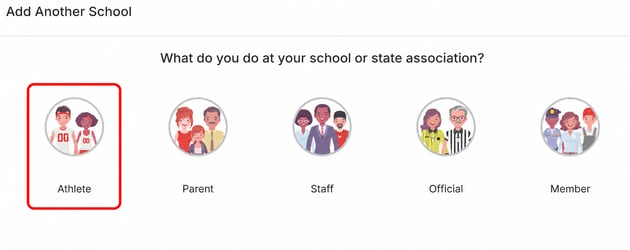
2. Select that you are an athlete.
3. Select your state.

4. Search for your new school by name, then select that school from the list and click the 'Join' button in the bottom corner.

5. Select all of the sports and activities that you will be participating in, then click the 'Add' button in the bottom corner.

6. Review your information and select the 'Save' button.

7. Click the Refresh/Reload button. You should see a message confirming that you are waiting for approval from the organization you requested to join. While you wait, you can begin filling out forms by clicking “Complete Your Registration” and setting up your profile by selecting “My Information”.

Remove an Old School
Student athletes cannot currently remove themselves an old/previous school. To be removed, please contact the athletic director, coach or DragonFly administrator at the previous school and ask them to remove you from the school.