
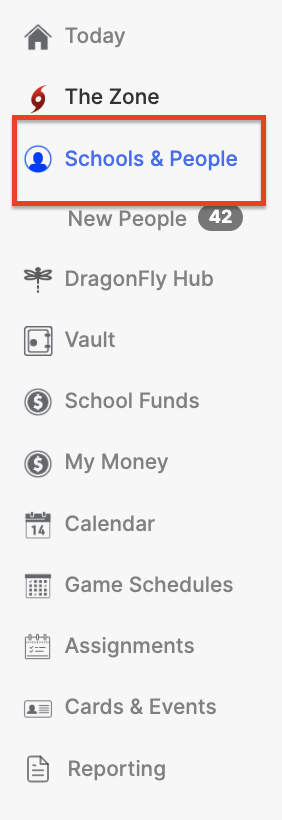
DragonFly has updated how filters work on the 'People' page. Click on "Schools & People" from the lefthand menu to access the new updates.
|
1 |
Program & Team Filters |
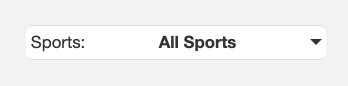
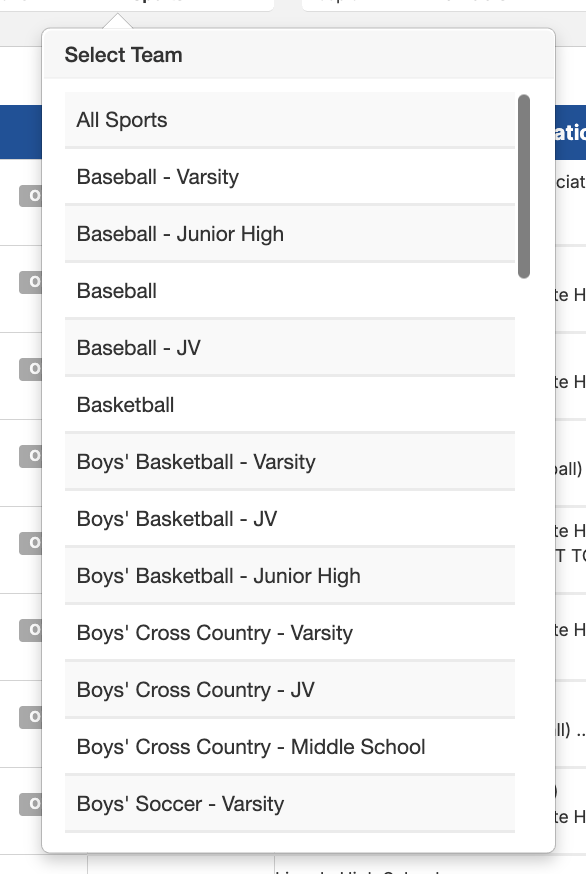
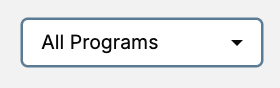
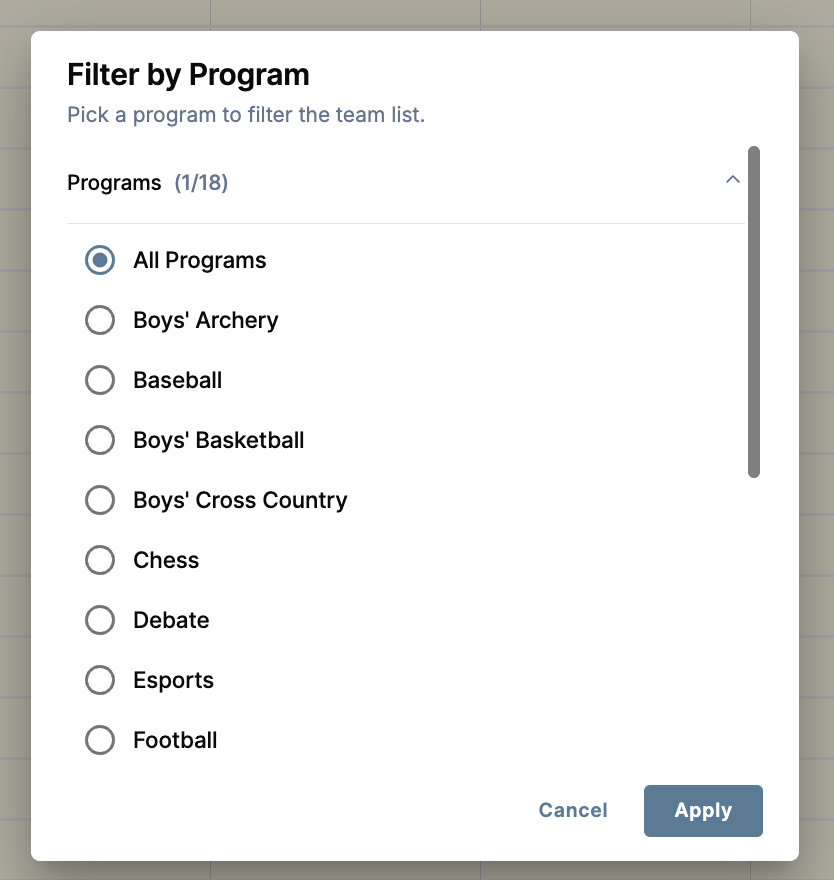
The Sports selector has been replaced by a two-level hierarchy. You now first choose a Program, then optionally filter down to a specific Team within that program.
|
BEFORE |
NOW |
|
|
|
|
|
Setting Up Programs The Program filter only shows programs that have been configured for your school. To add or modify programs, go to the Sports & Teams tab. Once a program is set up there, it will automatically appear in this filter.
|

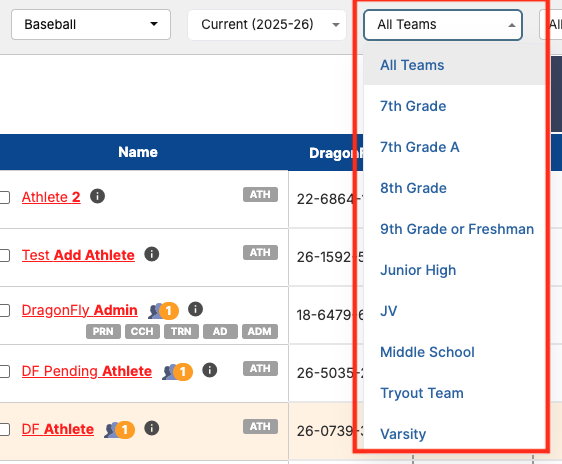
Once you select a Program, you can further filter by Team:
|
2 |
Multi-Select Role Filter & Persistent Eligibility |
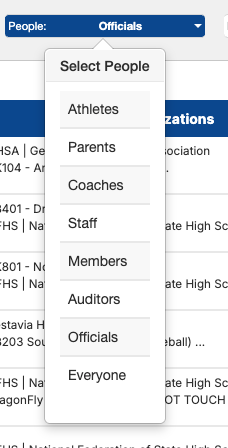
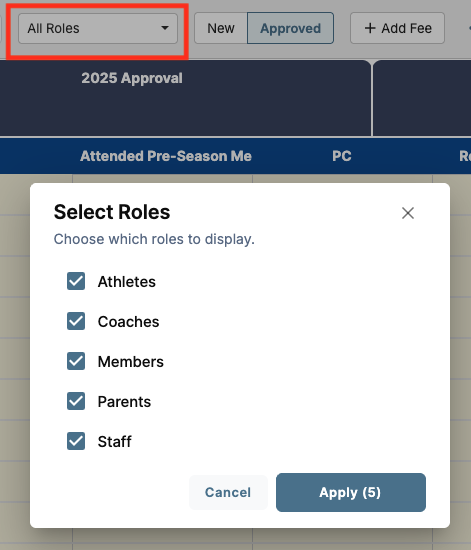
The Role filter now supports multi-select — choose one or more roles simultaneously.
|
BEFORE — SINGLE ROLE ONLY |
NOW — MULTI-SELECT WITH PERSISTENT ELIGIBILITY |
|
|
|
|
|
Eligibility Filter Removed There is no longer a standalone eligibility filter. Eligibility by role is shown automatically on screen at all times whenever one or more roles are selected. Fields that do not apply to a role display as a dash (—). |
|
3 |
Action Buttons Consolidated into Dropdown & Renamed Labels |
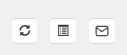
Refresh, Download, and Message buttons have been moved from the top toolbar into a single dropdown menu.
|
BEFORE — INDIVIDUAL BUTTONS IN TOOLBAR |
AFTER — ALL ACTIONS IN ONE DROPDOWN |
|
|
|
|

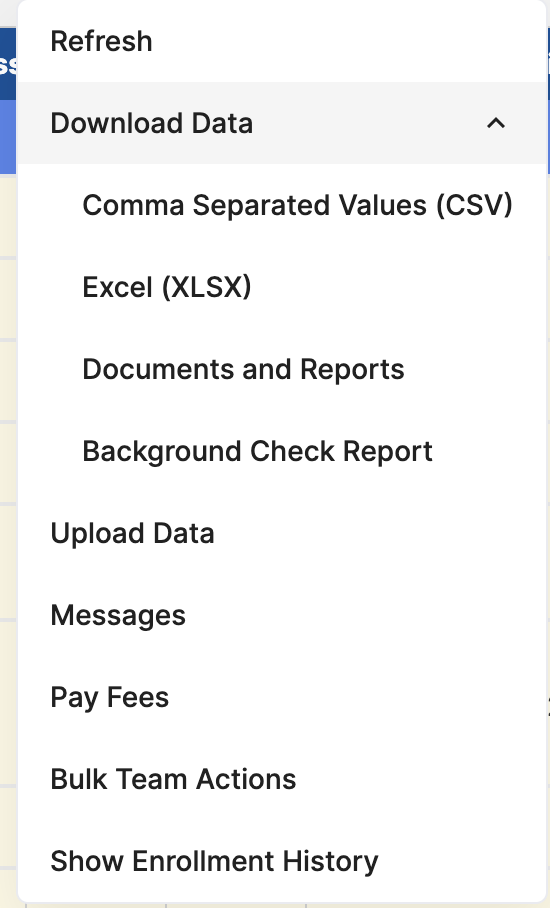
Two labels in the interface have been updated to better reflect their actual function:
|
“Show Transfer History” |
→ |
“Show Enrollment History” |
|
“Download Roster” |
→ |
“Download Data” |
|
4 |
Teams Column & Roster Assignment |
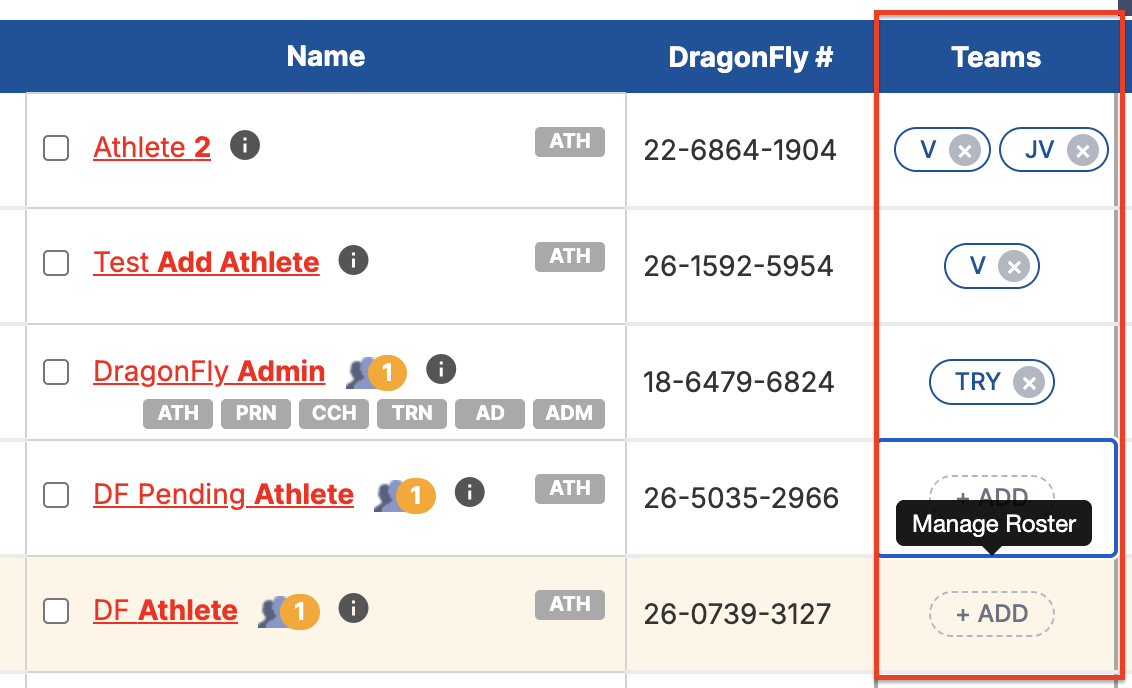
When a specific Program is selected, a Teams column appears in the roster table. This is how you assign individuals to teams for that program.
|
The Teams column is only visible when a specific program is selected. It does not appear when “All Programs” is active. |
ASSIGNING TO A TEAM
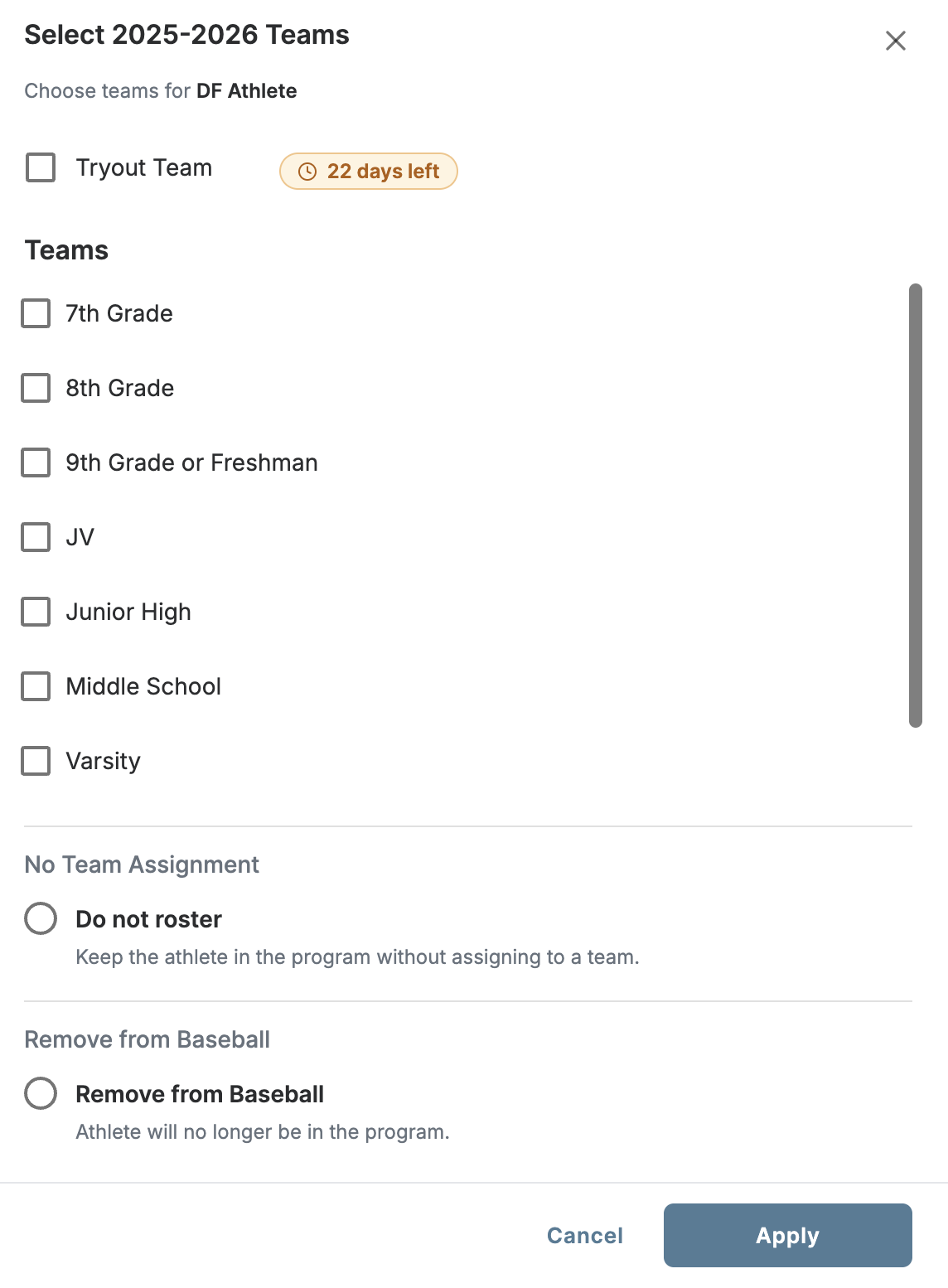
Click “+ Add” to see the teams set up for that program. You can place the user on a team, choose “Do not roster,” or remove them from the program entirely.
STATUS INDICATORS
|
Indicator |
Meaning |
|
“TRY” badge |
The person is on the Tryout Team for this program. Every program now has a built-in tryout team. |
|
Orange highlight |
The user has submitted a request to join the program and is awaiting assignment. |
|
Countdown |
Shows days remaining before the join request expires (30-day window). After expiration, the user must re-request. |