-
Log into your DragonFly Athletics account.
-
Open Schools & People
-
From the navigation menu on the left side of the screen, click Schools & People. This section is where you can view and manage the people connected to your school or organization.
-
-
Find the user you want to update
-
Search or scroll through the list of users until you locate the person whose role needs to be added or changed.
-
-
Open the User’s Rosters Program
-
Once you locate the user, click the box in their row under the Rosters Program column.

-
-
Add a new program or role
-
Click “+ Add Program / Role”. A new section will appear where you can choose the role and the program or team that should be connected to that user.
-
-
Select the new role
-
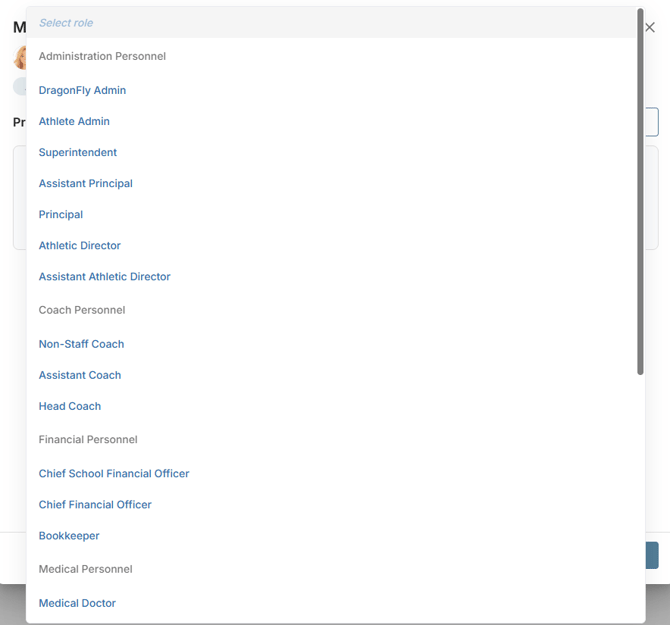
Click the “Select Role” dropdown and choose the correct role.
-
-
Select the program and team
-
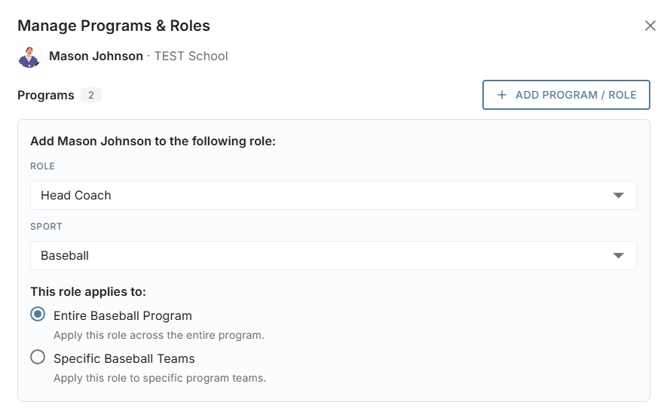
Choose the appropriate sport or program from the available options. If the role only applies to a specific team, select that team as well.
-
-
Choose how broadly the role applies
-
Decide whether the person should have that role for the entire program or only for a specific team.
-
-
Save the new role
-
Once everything looks correct, click Save. The user’s new program and role assignment is now updated.
-
English - United States
