Reviewing the Public Directory
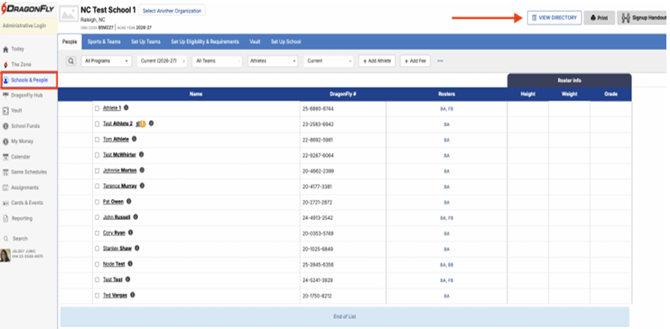
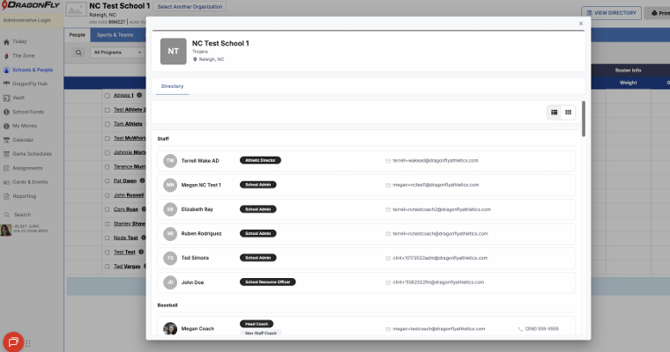
To access your schools directory to review staff and coach roles, you will now locate the directory in the upper right hand corner of the Schools and people page. This modal will currently be read only.
Editing the Public Directory
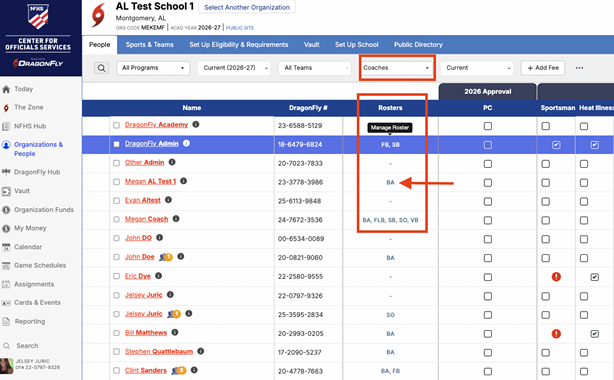
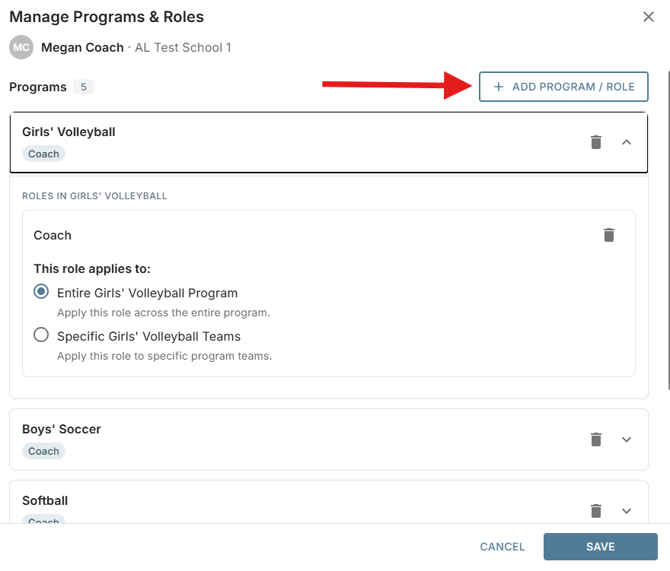
To edit permissions, you must edit the staff/coaches user roles via the new roster column on the School and People Page. You will click in the Roster column to see the Roster/Role prompt display. From there you can delete (Trash Can) roles or select the +Add Program/Role button to expand user roles for the user. These changes will reflect then on the Public Directory.
Click here for more details on how to manage roles in DragonFly.
Please note you can choose an entire program, i.e. volleyball, or the specific teams under that program, i.e. varsity only. Click here for more details on how to manage your sports & teams.
Need to remove someone from their program/role? Click here for steps on that process.