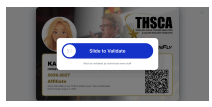
Please follow the steps below to validate your THSCA membership card.
-
Locate the Membership Card by asking the coach to open the DragonFly Athletics Team App
-
Have the coach navigate to the app and tap on their THSCA Membership Card, which will appear on their screen upon login.
-
-
Prepare the Membership Card for Validation
-
The card will rotate to a landscape layout.
-
Once the phone is in landscape mode, have the coach tap the Membership Card again.
-
-
Validate the Membership Card
-
A "Slide to Validate" pop-up will appear.
-
-
The ticket taker, another authorized event staff member, or the coach should slide the validation bar to complete the validation process.
-
- Review the Validation Result
-
Successful Validation
-
If validation is successful, a screen displaying a green "Go!" will appear. This indicates the coach is approved for entry and may proceed into the event.
-
-
-
Previously Validated Membership Card
-
After a Membership Card has been successfully validated, it cannot be validated again for 1.5 hours. If the card was already validated within the last 1.5 hours, a red "Whoa Partner!" message will appear. This indicates the Membership Card has recently been used and cannot be revalidated at this time.
-
-
-
Entry is at the discretion of the ticket taker or authorized event staff.
Review the Validation Result
-