
Please follow the steps below to set up your THSCA card in DragonFly.
-
Click on the link provided or scan the QR code on the bottom of this page to set up your THSCA Membership Card.
-
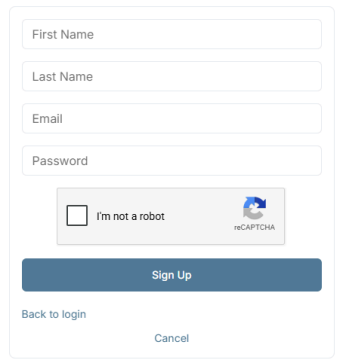
Once you click the link or scan the QR code, you’ll first need to create a DragonFly Athletics account. After signing up, you can begin the membership card setup form.
-
Filling out the Membership Card set up form.
-
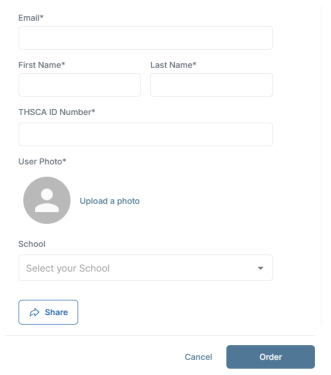
Once you've signed up for your DragonFly account, proceed to fill out your THSCA information.
-
-
If you exit before finishing, simply click the link or scan the QR code again, log in to your DragonFly account, and continue filling in the form.
-
-
Enter the required information.
-
Email Address, First Name, Last Name, and THSCA ID Number. These fields must match exactly with the information listed in the THSCA Member Portal for verification to be successful.
-
-
Upload your user profile photo with a headshot.
-
Select Your School.
-
Click the School dropdown. Search for and select your school from the dropdown list. If you do not see your school listed, contact THSCA Support at info@thsca.com
-
-
After all required fields are completed, click the blue “Order” button.
-
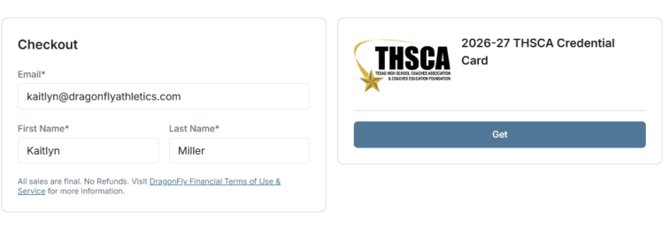
Review that all information matches exactly with your THSCA Member Portal information.
-
Click the blue “Get” button to complete the membership card setup.
-
-
-
Access your Membership Card through the DragonFly Teams app.
-
Download the DragonFly Teams app, sign in to your account, and your membership card will be available in the app to use.
-
-
For assistance, contact THSCA Support at info@thsca.com
Information must match the THSCA member portal exactly.
Review all entered information before submission and confirm your name, email, and THSCA Identification number match the member portal exactly!
If you are unsure whether your information matches the Texas database, contact THSCA support info@thsca.com before submitting.