
It's easy to communicate using DragonFly! Follow the steps below to quickly send a message to a team, individuals, or groups in your organization directly from Schools & People / Organizations & People or the Game Schedule.
Schools & People (or Organizations & People)
-
Log in on your web browser and select 'Schools and People' on the left-side menu.
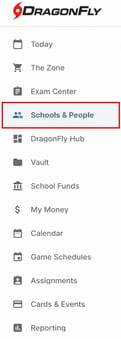
-
Use the filters at the top of the page to find the group you want to message. You can filter by academic year, organization role, team, and more.

-
Select the individuals you'd like to send a message to.
To send a message to an entire group (for example a team or all officials in your organization) leave all boxes unchecked - if no names are checked, the message will go to everyone visible in the filtered view. (In the image below I only selected four athletes to send my message to.)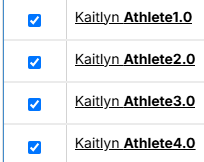
-
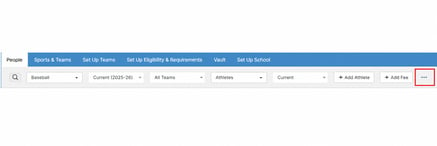
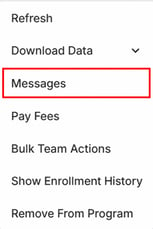
With your recipients chosen, click the three dots (...) located at the top right of the page. Once you click the three dots a drop down will appear with several options, click 'Messages'.


Composing & Sending Your Message
To compose your message, there are several functions available to you.
Depending on your role and organization, you can select who the message will be sent from, see who it will be sent to and add additional recipients.
If you would like to receive replies, check 'Receive Reply Emails'. If you'd like a copy sent to your inbox, select 'Copy Myself'.
You can format your message with familiar tools (bold, italicize, etc.) and upload files to be sent as attachments.
Once you are satisfied with the message, click 'Send' in the bottom-right.
The message has been sent! It will show up in recipients email inboxes as though sent by your name with any attachments you included.

Sending an Email Through the Game Schedule
Messages can also be sent directly from the Game Schedule view to key people attached to a game or tournament.
-
Select a game in the Game Schedule, and navigate to 'Key People' in the game details window on the Game Schedule.
Click the three dots (...) located at the top right of the page.
-
Using the same steps as above, compose your message.
You can select all key people attached to a game or specific roles or individuals.