
- Navigate to the appropriate Program (for example, Baseball).
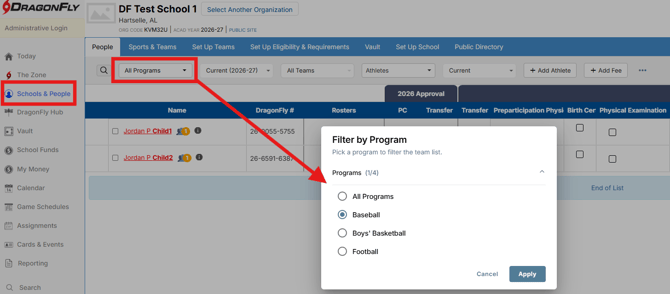
- Locate the user/athlete who needs to be removed from the program and select the roster column next to the athlete's name to open their program details.
Review the program information at the top of the page (if there are no designated levels listed for the athlete, they are not currently rostered within a specific level).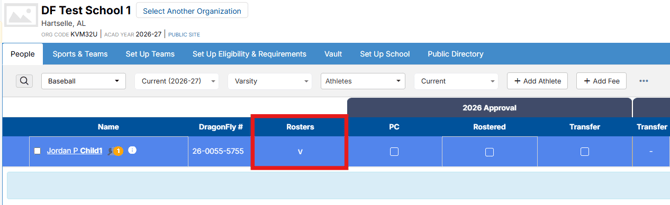
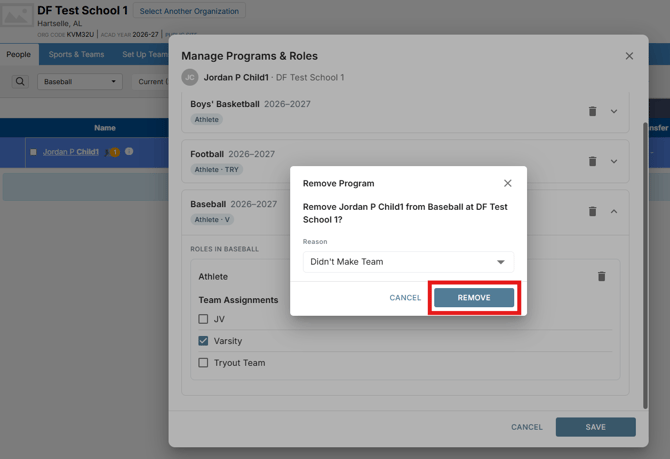
- To remove the athlete from the program, select the Trash Can icon for the overall program
You can choose to remove them from the specific level while leaving them in the program by selecting the Trash Can icon for their role within the program instead.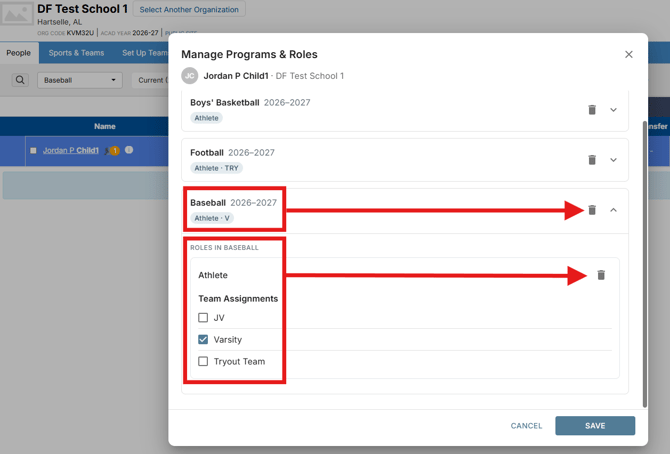
- Select the appropriate reason for removing the athlete from the program.
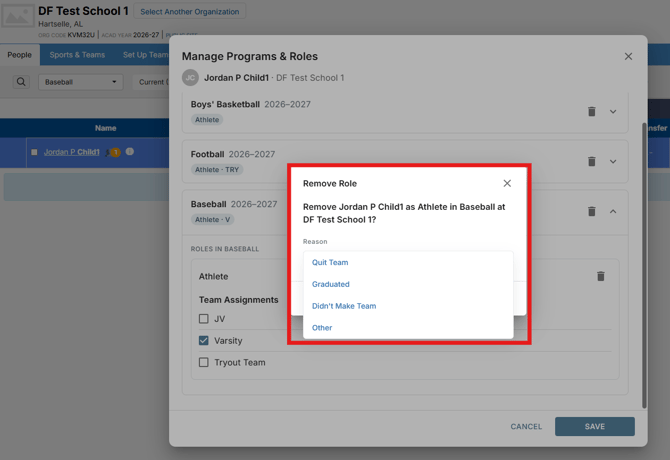
- Select Remove.
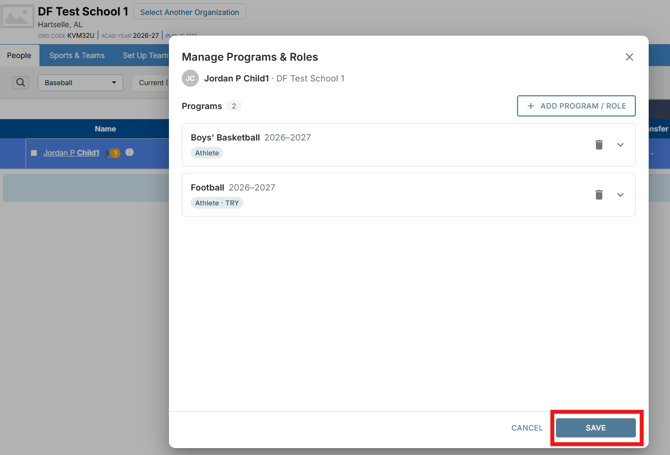
- Select Save to confirm the change.
Click here for more details on how to manage roles in DragonFly.