Follow these simple steps to create, publish, and manage items in DragonFly Zone. Once your item is set up, you can easily edit, share, or organize it at any time.
-
Open DragonFly Zone
-
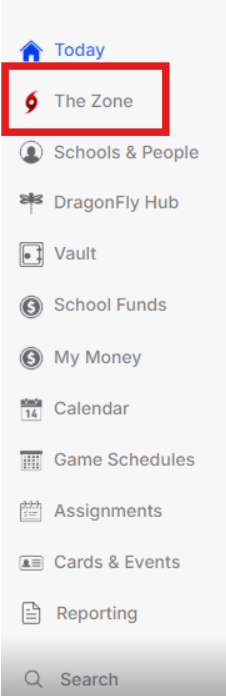
Log in to your DragonFly account and select Zone from the left navigation menu. Here, you'll see all of your existing published and unpublished Zone items.
-
-
Create a New Item
-
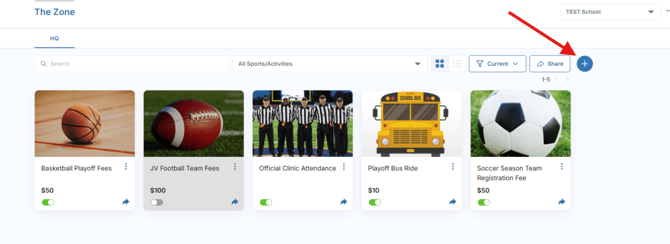
Click the + button in the upper-right corner and select New HQ Item to begin creating a new item. Or choose Add Existing to use an item that's already been created.
-
-
Enter the Item Details
-
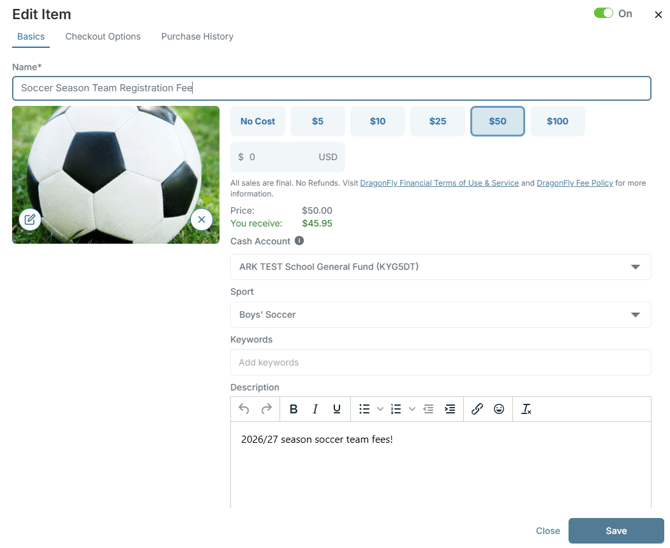
Add the item information, including the item name, image, cost, cash account, associated activity, keywords, and a description. This information helps users identify and purchase the correct item.
-
-
-
Configure Checkout Options
-
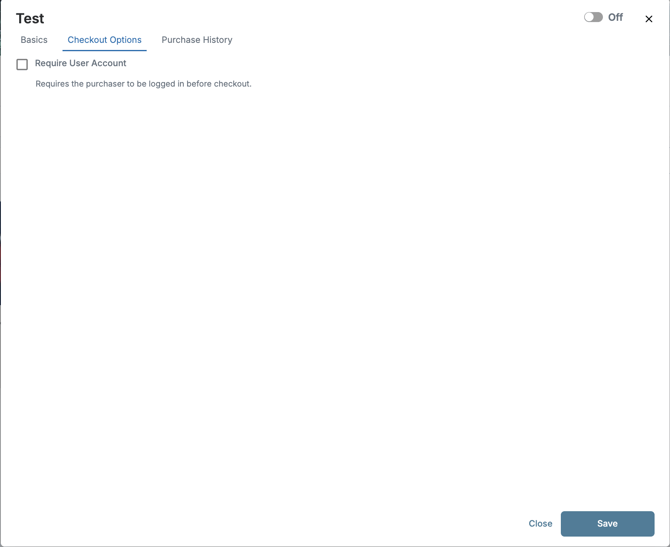
Select the Checkout Options tab to configure any checkout settings or admin-only requirements needed before the item can be purchased.
-
-
Save and Publish
-
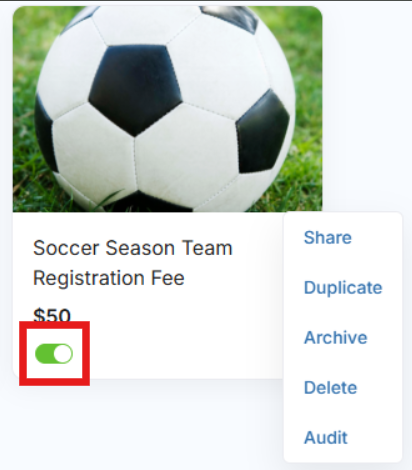
Once all information has been entered, click Save to publish the item. If you ever need to temporarily remove it, use the green toggle to unpublish it, then toggle it back on to republish.
-
- View Purchase History
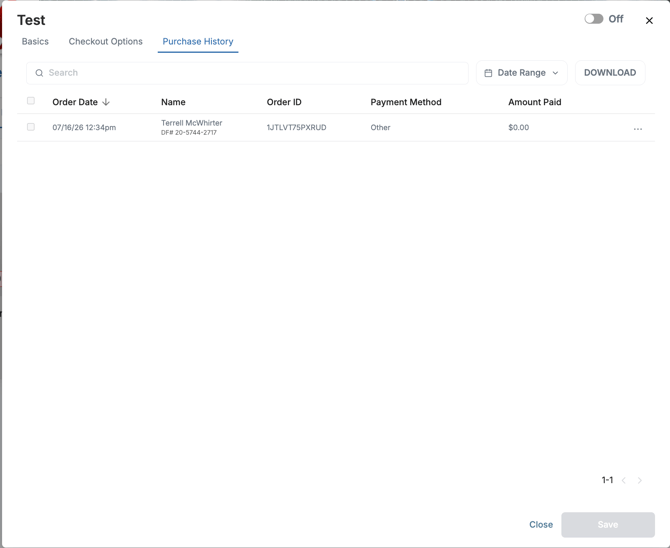
- Click on the 'Transaction History' to see a list of all purchases made for the item
-
Edit an Existing Item
-
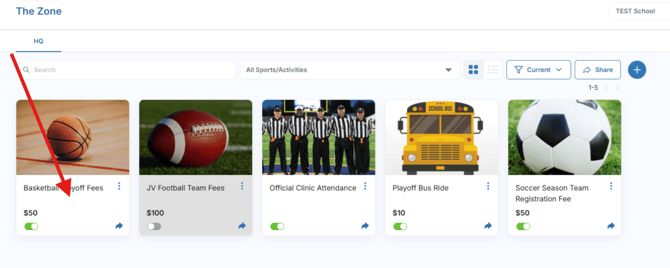
Click on any existing item to make changes. You can update the item details, modify checkout options, or review the Purchase History for that item.
-
-
Manage Your Item
-
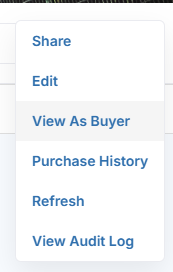
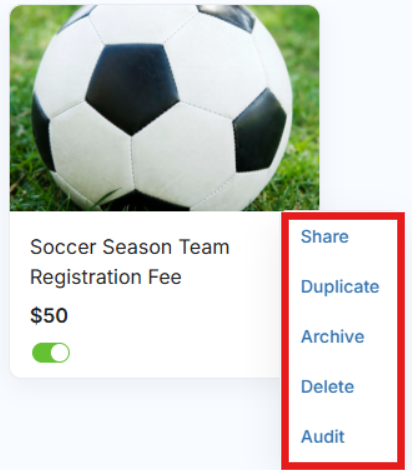
Select the More Actions (⋮) menu to access additional options, including Share, Duplicate, Archive, Delete, Audit, or Download the item.
-
-
Share and Find Items
-
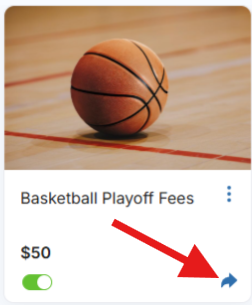
Share individual items or your Zone store with others using the Share option. Use the search bar to quickly locate an item by name or keyword, or filter by sport to narrow your results.
-
- View as Buyer
- You can view the public facing Zone page by clicking this option in the main menu. This creates a unique URL for your organization that can be shared.