Step 1: Go to the Today Page
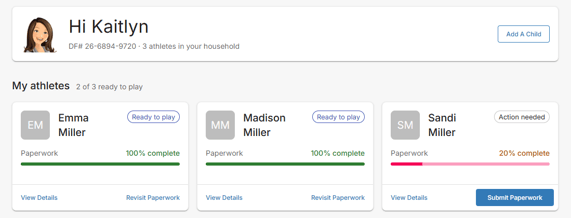
Log in to your DragonFly Athletics account and navigate to the Today page. Under the My Athletes section, you will see a tile for each athlete connected to your account.
Each athlete tile shows their current registration readiness, including their paperwork completion percentage and whether additional action is needed.
Step 2: Select “Submit Paperwork”
If an athlete still has registration requirements to complete, click the blue Submit Paperwork button on their athlete tile. Alternatively, click “View Details” in the bottom-left corner of the athlete’s tile. Then, select the “Get Ready” tab to see a more detailed view of the athlete’s registration status and any remaining requirements.

Step 3: Review Registration Requirements
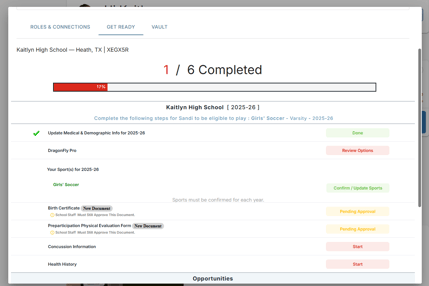
This will open a more detailed view of the athlete’s registration status. Here, you can see the items that have been completed and any requirements that still need attention.
To complete a requirement, select the appropriate item and follow the prompts provided.
Step 4: Check the Status of Each Item
As you work through the registration requirements, you may see different status indicators:
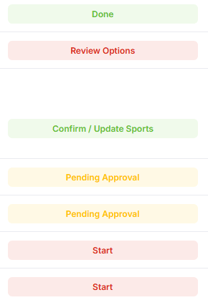
- Done in green means the item has been successfully completed.
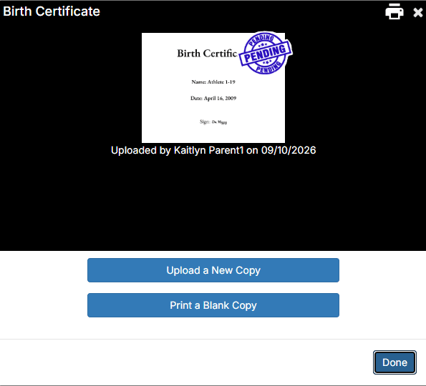
- Pending Approval in yellow means the item has been submitted but still needs to be reviewed and approved by a school administrator.
- Start in red or another action button indicates that the item still needs to be completed.
Once an item that requires administrator approval has been approved, its status will update accordingly.
Step 5: Confirm the Athlete Is Ready to Play
Once all required paperwork and registration items are complete and up to date, the athlete’s tile on the Today page will show 100% complete and display Ready to play in the upper-right corner.