
When you are logged into DragonFly, you can chat directly with DragonFly Support to get real time answers to your questions. Here's how it works:
How to start a chat
1. Click on the Help icon at the bottom lefthand corner to open the chat feature
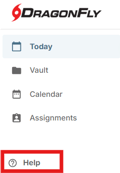
2. Click into the Chat icon to open the chat
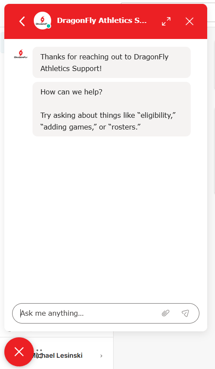
3. Type in your message to start chatting
Notes on Chatting
-
Chat will share with you up to three potentially relevant Help Center articles based on the first message you send - we recommend checking these to see if they answer your questions
- If the Help Center articles do not answer your question, proceed with the chat to get to a live agent
- If you do proceed to a live agent, Chat will quickly ask you some basic details about yourself before transferring you over
Finding Old Chats
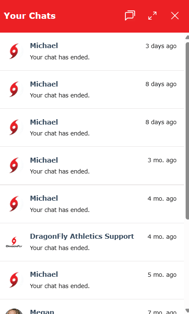
Has your chat ended? No worries! You can start a new chat as many times as you want! You can also view your old chats any time you want by clicking on the back arrow in the upper lefthand corner of the chat window.
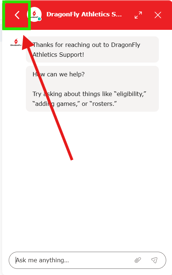
From there, you can click into any old chat to review it's contents.
Managing the Chat window
There are a few icons at the top of the Chat window that will help you manage your chats.

1. The chat window icon will let you start a new chat
2. The arrows icon will allow you to expand the chat to provide more space for reading and typing
3. The X icon will minimize the chat completely in case you need to get it out of your way
Please note: click on the Help icon again to bring up your chat window to pick up where you left off if you minimized the chat
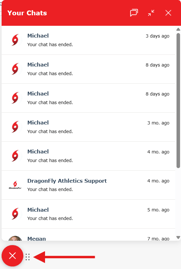
One other tip: you can click on the 6 dots to the right of the chat icon at the bottom of the chat window and drag that to move the entire chat window around on the screen. This is great if you want to keep chatting but need to see something behind the chat window. Clicking the X there will also minimize your chat.
Chat Notifications
There are two types of notifications to alert you when we've responded to your chat.
1. A badge icon will appear above the Help icon indicating we've replied to your chat

2. The chat feature will play a sound whenever we reply to a message
Chat Notifications
You can chat anytime you want. There is no limit to when or how many chats you can send.
However, our Support Team is only available during the following times:
- Monday through Friday - 8 AM to 5 PM Central Time
- We are closed on weekends and holidays
If you chat during off hours, we will reply to your chat as soon as possible when we are back online.