- Log in to your DragonFly account.
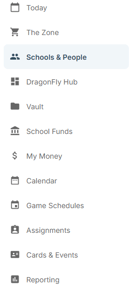
- From the menu on the left side of the screen, navigate to the Schools & People tab.
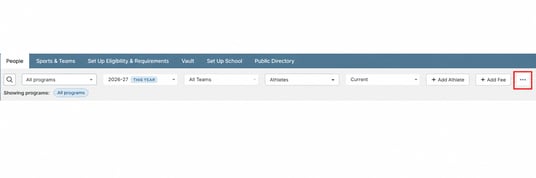
- In the Filters section at the top of the page, select the group of individuals you want to remove (e.g., athletes only or coaches only).

- Select the individuals you want to remove by clicking on each person's name.

- Once you have made your selections, navigate to the top right side of the screen and click the three-dot menu (⋯).
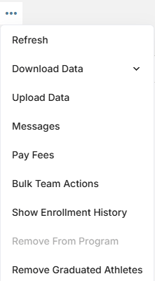
- A drop down menu will appear, select Bulk Team Actions
- A pop-up window will appear with several available actions. Choose the appropriate removal option.
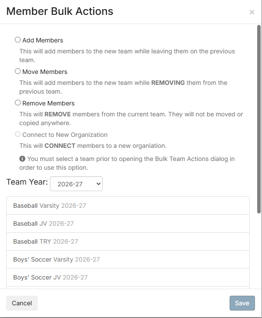
- Review your selections and click Save to apply the changes.
English - United States
