
1. Visit www.dragonflymax.com on your computer's web browser and select the 'Sign Up for Free' button.
2. Enter your first name, last name, email address and password. Submit this information to create your free account.

3. Check your email for a verification code and then copy and paste this code into the field on the verification screen.

4. Review and accept the Terms of Service.
5. Select the 'Connect to an organization' button on your Today page.

6. Select 'Member' as your role and select the 'Add' button.

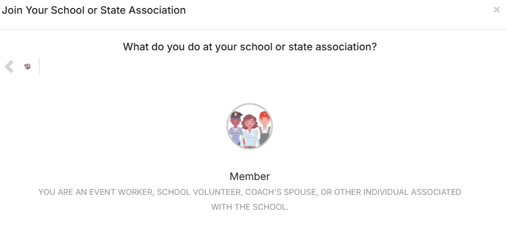
7. Choose your state.

8. Search for your school or organization. Choose the primary organization where you work or volunteer. For example, if you consistently work the concession stand for TEST School, you will search for and select this school. If you work with multiple schools or organizations, you can add your additional ones in a later step.

9. Review your information and if everything is correct, click the 'Save' button.

10. You will now be visible for a school or organization administrator to schedule your upcoming games and events through DragonFly. Contact the scheduling administrator at your school or organization and let them know you're registered.
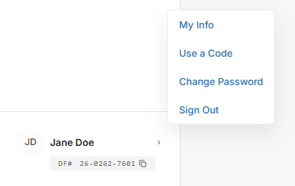
11. Select the 'My Information' button to input your contact information. This is an important step if you plan to get paid.
12. Download The DragonFly Teams App for iOS or Android and log in with your username and password.
13. When you have been assigned a game or event, you will receive an email that will notify you of the assignment. Log in to your DragonFly account on the web or open the app and you will see your assigned games and events in the 'Assignments' tab on the left hand side. Use the 'Accept' or 'Reject' buttons to take action on a game.

Need to connect your account to another school or organization? Click here for instructions.