Managing Programs from the People List
Filter the People list by program
The program filter at the top of Orgs & People lets you narrow the list to one sport, several sports, or people who aren't on a program yet.
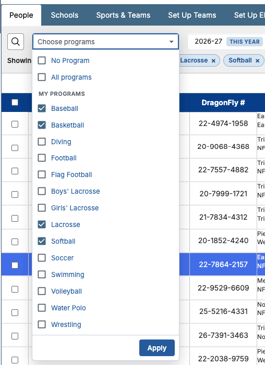
Show one program
- Go to Orgs & People.
- Click the program filter at the top of the list.
- Click the name of the sport. The list updates right away.
Show several programs
- Open the program filter.
- Tick the box next to each sport you want.
- Click Apply, or press Enter.
The programs you chose appear as chips under the filter bar. Click the x on a chip to remove it, or Clear all to go back to all programs.

Find people who aren't on a program
- Open the program filter.
- Tick No Program.
- Click Apply.
Pin and search programs
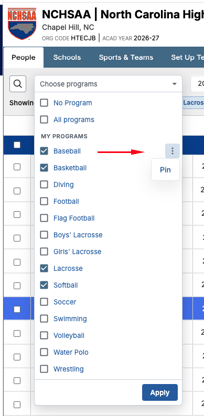
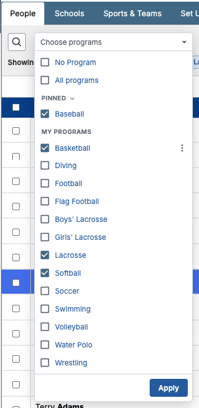
- Pin the sports you use most so they stay at the top of the list.
- Search by typing part of a sport's name. Small typos still match. Press Enter to apply every match shown.
Good to know
- The list opens on All programs, which shows current members only. To include everyone, tick No Program and apply.
- Your filter is remembered when you return to the page.
- The … Actions menu sits right after + Add Fee.
- The Role filter has no Apply button. It applies your choice when you close it.
Bulk Removal Actions
Remove athletes from a program
Use Remove From Program to take one or many athletes off a program in a single step. This removes them from the program only, not from your school.
Before you start
- You need an admin role in the organization.
- The People filter must be set to Athletes. With any other filter, Remove From Program is greyed out.
Steps
- Go to Orgs & People and set the People filter to Athletes.
- Tick the box next to each athlete you want to remove. To remove everyone who matches your filters, use Select All.
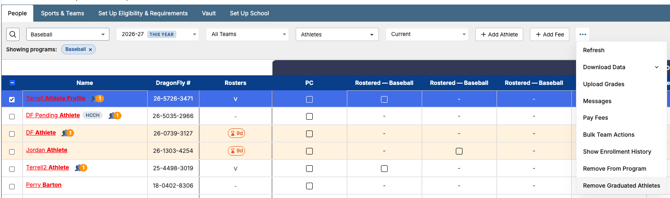
- Open the … Actions menu and choose Remove From Program.
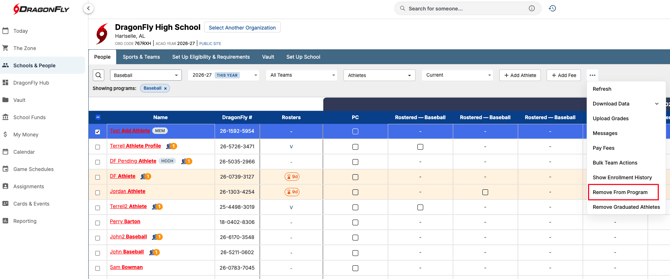
- If asked, choose the program.
- Choose a reason. If you choose Graduated, also choose the graduating class and whether to remove them from this program only or all programs.
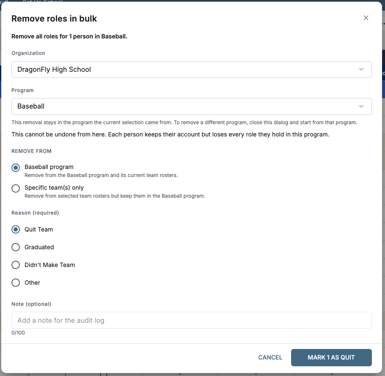
- Click Remove. If you're removing more than 50 people, or everyone who matches your filters, type the confirmation shown.
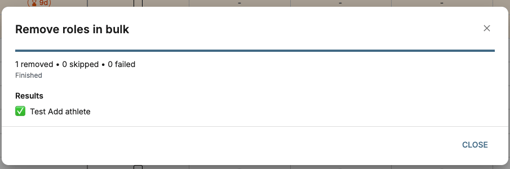
- Watch the progress bar. When it finishes, you'll see who was removed and anyone who couldn't be.
Good to know
- Removed athletes stay on the past-season rosters they played on.
- Only athletes can be removed this way. Coaches and staff are managed through Manage Roles.
Remove graduated athletes
Use Remove Graduated Athletes at the end of the school year to clear graduates out of a program, or every program, at once.
- Go to Orgs & People.
- Open the … Actions menu and choose Remove Graduated Athletes.
- Choose the academic year and the graduation cutoff.
- Review the summary and confirm.
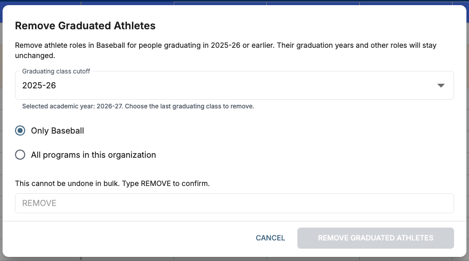
The athletes' roles and current-year teams are removed. Their graduation year and past rosters stay intact, and they remain part of your school.
Use the new profile page
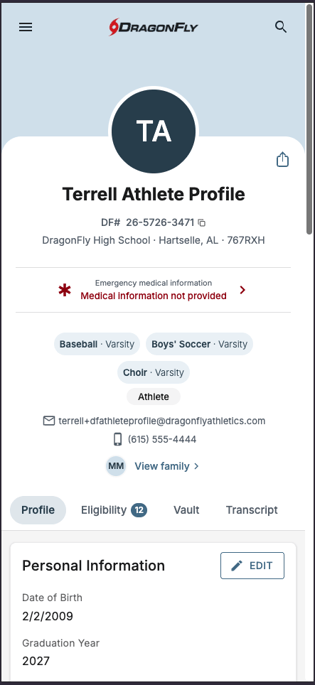
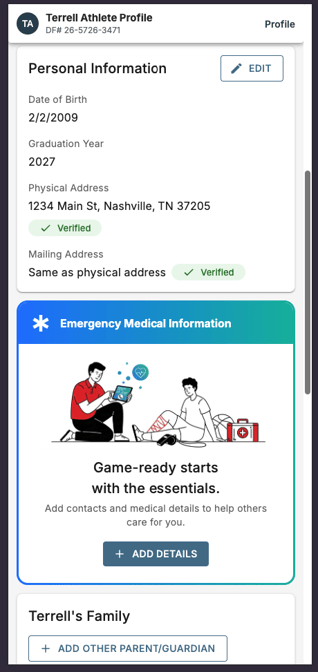
Profiles have a new layout and now open as their own page, so each one has a link you can share or bookmark.
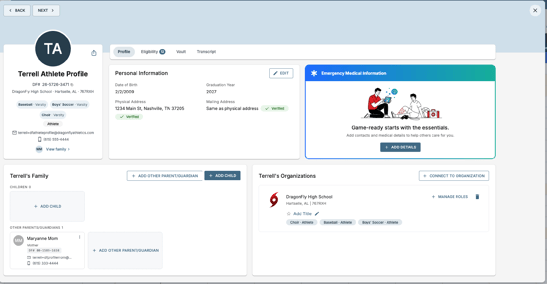
The profile header
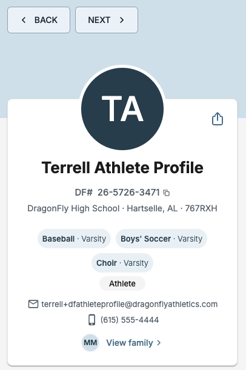
The header shows the person's photo, their sports and their family members.
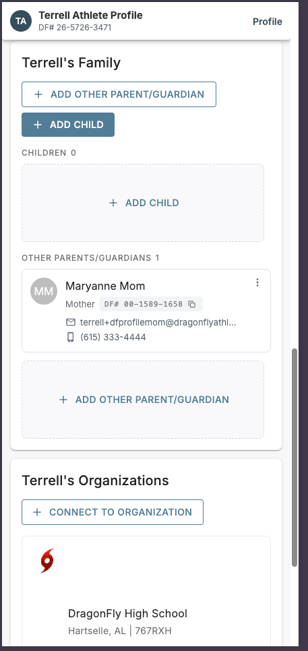
- Click a family member's photo, or View family, to jump to the Family section.
- Click View more under the sport chips to see every sport.
- Send Message and Edit sit in the header.
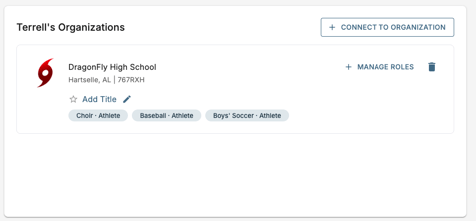
Section tabs
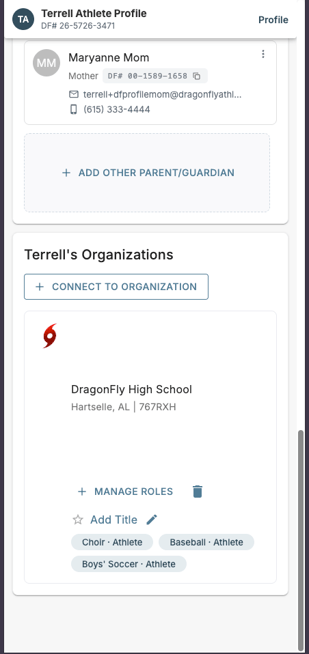
Use the tabs below the header to move between a person's details, teams and organizations. To add the person to another organization, go to the Organizations section and click Connect to Organization.
Move between people
- Use Search, Recent and Back on the profile to open another person.
- Use Back and Next at the top left of a profile to open the previous or next person in your filtered People list.
- Refreshing the page or pressing your browser's Back button keeps you on the same person and section.
- When you return to Orgs & People, your filters are still in place.
Find anyone with global search
The search bar at the top of every page finds people across all of your organizations, not just the list you're viewing.
- Click the search bar at the top of the page.
- Type a name or DragonFly number.
- Choose the person from the results to open their profile.

On a phone
Profiles open full screen, with clear buttons and medical information easy to find. As you scroll up and down, the person's name and DragonFly number stay pinned at the top of the screen, so you always know whose profile you're on.