Skip to content
English - United States
  • There are no suggestions because the search field is empty.

Connecting To Your Organization & Completing Your Profile | DragonFly Athletics Help Center

Connecting To Your Organization & Completing Your Profile

Connecting To Your Organization & Completing Your Profile

Now that you have an account, let's finish setting up your profile on DragonFly

Written by David Sikes
Updated over 6 months agoDavid Sikes

Log In To DragonFly

If you aren't already logged in, log in to your account at https://max.dragonflyathletics.com/

Connect To Your Organization

  • Click Get Started on the today page to begin.

Click Get Started on the today page to begin.

  • Select your role in the organization. In this example, we'll select Official.

Select your role in the organization. In this example, we'll select Official.

  • Next, we'll select Contest Official.

Next, we'll select Contest Official.

  • Click "Add Contest Official" to continue.
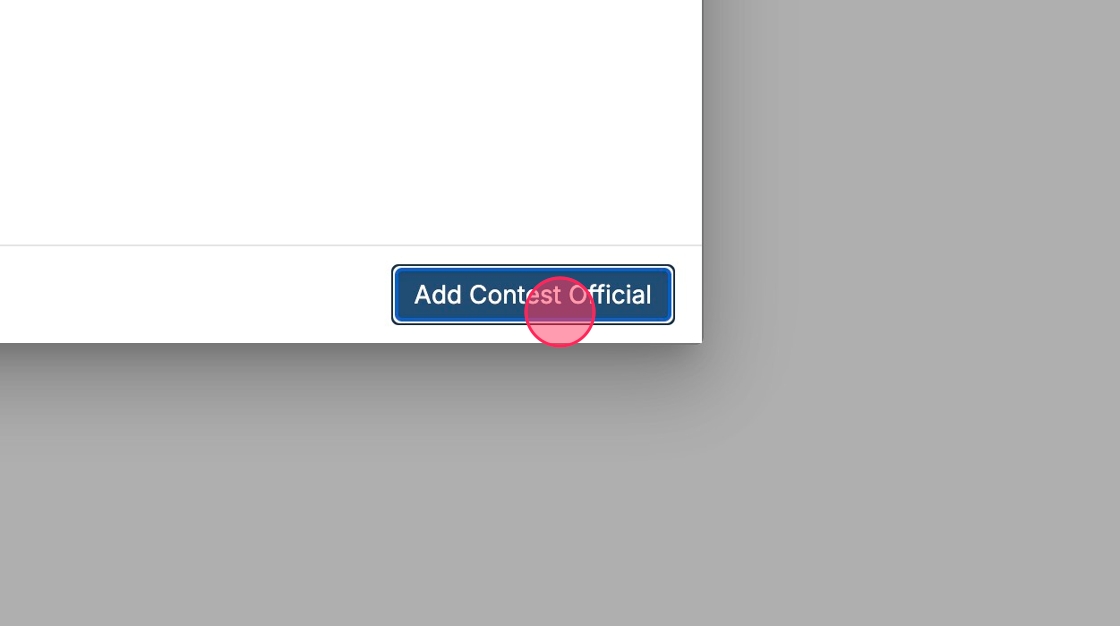
Click "Add Contest Official" to continue.

  • Select the state that you'll be working in. In this example, we're selecting "Alabama".

Select the state that you'll be working in. In this example, we're selecting "Alabama".

  • Click the button in the corner to continue.

Click the button in the corner to continue.

  • Search for or select your state association.

Search for or select your state association.

  • Click to continue.

Click to continue.

  • Select any sports or activities that apply to you. You can select one or multiple sports or activities.

Select any sports or activities that apply to you. You can select one or multiple sports or activities.

  • Click to continue.

Click to continue.

  • If you are part of a local association or group, you can search for or select that on the next page.

If you are part of a local association or group, you can search for or select that on the next page.

  • Click to continue.

Click to continue.

  • On this final page, review your information. Click 'Back' to go back and make changes or 'Cancel' to start over entirely. After verifying the information, select 'Save' to finish.

On this final page, review your information. Click 'Back' to go back and make changes or 'Cancel' to start over entirely. After verifying the information, select 'Save' to finish.

Adding A Profile Picture

  • To get started, we encourage users to upload a profile picture. To do this, click the silhouette placeholder next to your name.

To get started, we encourage users to upload a profile picture. To do this, click the silhouette placeholder next to your name.

  • You can upload an image from your computer or phone or take a photo if you have an attached camera. In this example, we're uploading an image. Click "My Device" to navigate to your image.

You can upload an image from your computer or phone or take a photo if you have an attached camera. In this example, we're uploading an image. Click "My Device" to navigate to your image.

  • After selecting a photo, you can crop or edit the image to your liking. When satisfied, click 'Upload Photo'.

After selecting a photo, you can crop or edit the image to your liking. When satisfied, click 'Upload Photo'.

Add Demographic Information

  • Select "Complete Registration" on the "Today" page.

Select "Complete Registration" on the "Today" page.

  • The first item on your list is "Update Demographic Info". Click "Start".

The first item on your list is "Update Demographic Info". Click "Start".

  • Enter in your name, date of birth, address, and other information.

Enter in your name, date of birth, address, and other information.

  • You may add an Emergency Contact below.

You may add an Emergency Contact below.

  • When finished, click "Done" in the corner.

When finished, click "Done" in the corner.


Did this answer your question?😞😐😃