Template Format
We require a specific format for your CSV file. When uploading academic data, the file must match our format or the data will not sync to DragonFly.
Please click here to see our template file.
Common Issues
Before submitting your CSV file for integration, please check the common issues below. If any of these issues are prevalent in the file, it will cause the sync to fail.
1. Column Headers
The column headers need to match the template exactly. This includes:
- Column Header Order
- Column headers need to match the order in the template
- All column headers must be included (do not remove any columns)
- Column Header Spelling
- Spelling needs to match exactly, including spacing and capitalization
- Watch out for extra spacing at the end (an errant space after the title will cause issues)
2. Incorrect School ID
The School ID used in the academics setup needs to match the School ID being used in the file. If this mismatches, the sync will fail.
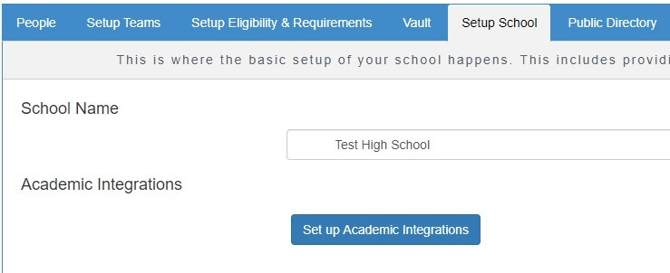
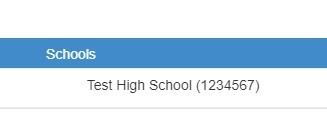
You can find the correct School ID by going to the Setup School tab in DragonFly and clicking the "Set up Academic Integration" button. The School ID will be the letters/numbers in parenthesis next to your school name.
3. School ID Beginning with 0
Many spreadsheet programs will remove the initial zero in numbers.
With Manual Upload, your School ID can be any Alphanumeric code. If your school ID begins with a zero, you might want to consider using a letter-number combination (ex; SCH01234 instead of just 01234) for your School ID
If you do use a School ID beginning with zero, format the School ID column in the spreadsheet as Text before saving the file as CSV and open the saved CSV file in Microsoft Notepad or another basic text editor to see how the School ID was actually saved before uploading the file.
Examples of School IDs with leading zeros in the exported CSV file:
- 01234 - Correct
- "01234" - Correct - A single set of double quotes are allowed.
- 1234 - Incorrect - Integration file will fail - School ID was saved as a number
- 01234' - Incorrect - Integration file will fail - Using single quotes causes this
- """01234""" - Incorrect - Integration file will fail - More than one pair of quotes
4. Student ID
This is a REQUIRED field.
5. Date Formatting
While all date fields are not required, all dates entered must be expressed in the following formats:
- MM/DD/YYYY or MM-DD-YYYY
- YYYY/MM/DD or YYYY-MM-DD
For example, a student whose birthdate is recorded as 1/5/12 on a line item instead of 1/5/2012 will cause the line item to fail and not be integrated.
Make sure to use the same formatting in all data fields.
6. Current Grade Level
This needs to be expressed as a number only.
- 12 - Correct
- 12th - Incorrect
- 12th Grade - Incorrect
7. No Commas Allowed
If any field value is written with a comma included, the system will assume a new column is needed and an offset of information will occur thus ending the integration process.
This most commonly happens with the Student Physical Address column where an address has two lines traditionally separated by a comma.
-
Student Physical Address (Incorrect): Apt 123, Jones Street - Makes a separate column for "Apt 123" and "Jones Street"
-
Student Physical Address (Correct): Apt 123 Jones Street
8. Academic Year Column
This is a REQUIRED field. It should be set to the graduation year of the school year the grade belongs to.
Example: The Academic School Year Column for grades in the 2026-2027 school year should read 2027.
9. Is Core Column
This field only accepts Y or N. Do not use "Yes" or "No" for your values.
10. Credit Columns
There are three columns for Grade calculation: Attempted Credit, Graduation Credit and GPA credit.
- Attempted Credit - Use this column to report how much the course is worth
- GPA Credit - Use this column to report the credits earned for the course
- Graduation Credit - If you are uploading your grades via CSV file, Leave this column blank
11. Multiple Periods/Years in Same File
Data for multiple time periods can be assimilated into the same file. Creation of multiple files will also work but might be more work overall.
For the integration to work correctly in the CSV, please keep all grades together for a specific student as a block that includes the different courses and periods (Sem 1, Sem 2, SS, Year).
In other words, all grades for a specific student should appear in a single place in the CSV file as a block of grades and not in various locations.
12. Grading Period Name
Accepted values for grading period names are:
- Semester Grades - Sem 1 or Sem 2 or S1 or S2
- Quarter Grades - Q1 or Q2 or Q3 or Q4 (Quarters)
- Year Grades Y1 or AY (All Year)
- Summer School Courses - SS
13. Timing
Please note that uploading your data will not be instant in DragonFly. Syncing academic data can take 24 to 48 hours. If you are reuploading your data after making corrections, keep this timing in mind.
Troubleshooting Manual Uploads in DragonFly
You can upload your grades directly into DragonFly from the People page to validate the file. This validation tool will show you exactly what is wrong in your file.
Please note this tool is only available for schools who are manually uploading their academic data into DragonFly via FileZilla. If you are using academic software such as PowerSchool, FACTS, or SAM to integrate your data, you will not see this option available.
Follow these steps to find the Grade Uploader:
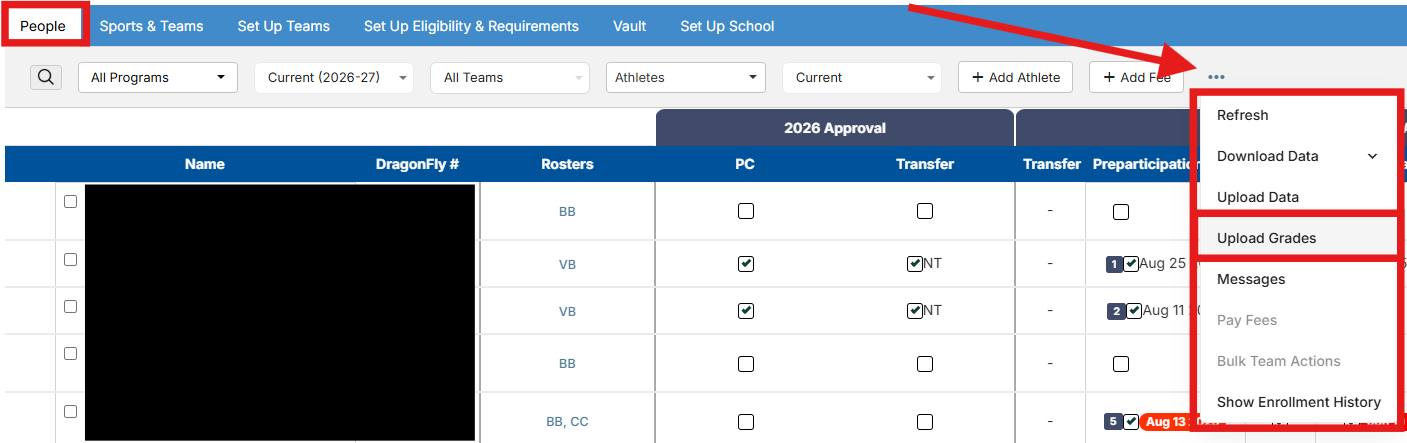
- Goto the People page
- Click on the three dots to the right of the filters
- Click on "Upload Grades"
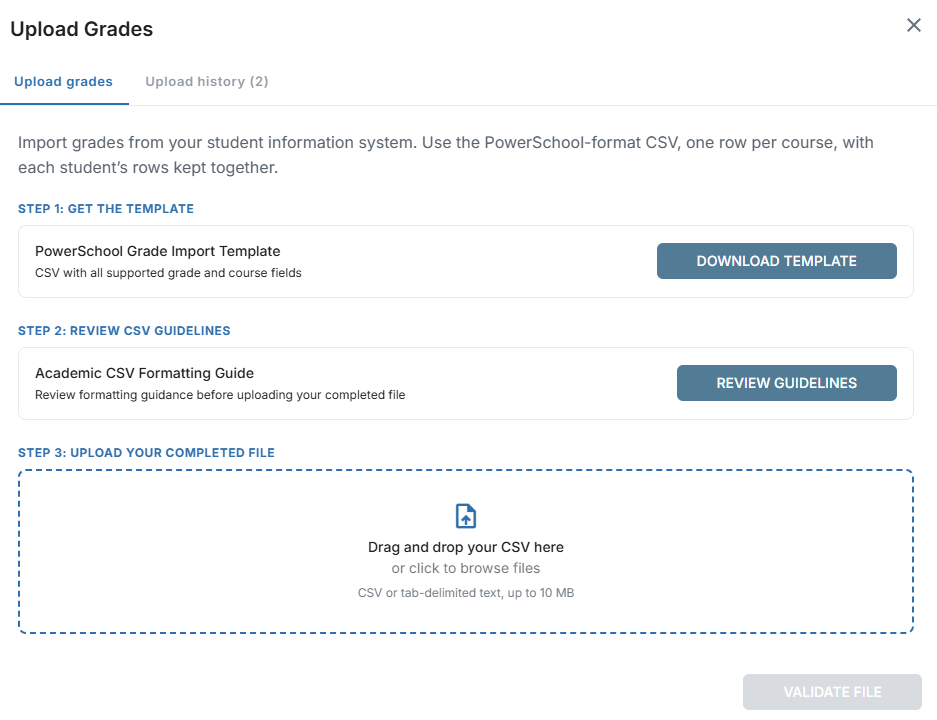
Follow these steps to upload your grades:
-
Download the template and review the guidelines (if necessary)
-
Drag and drop your CSV and click "Validate File" and import from there if validation succeeds
 Follow these steps to review your validation when it fails:
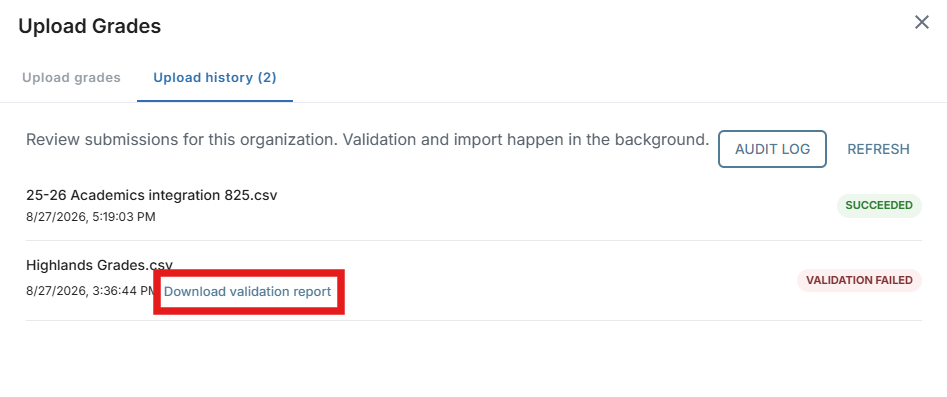
- Click on the 'Upload History' tab
- Click on the 'Download validation report' link
- This will download a CSV file showing you line by line what failed during the validation
Please note the file will only show you the first 100 failures in the file. If there are more than 100 issues, the file will not show anything past the first 100.
Once you've identified the issues with the file, you can make your corrections and try the grade uploader again to see if it will import successfully now.